















Losing your iPhone can feel like the world has hit the pause button. One minute, everything is at your fingertips, and the next, life suddenly feels disrupted, and you're disconnected from it. It's only natural to feel a wave of panic, especially since so much of our personal life—like photos, messages, and apps—revolves around that small device. Thankfully, Apple has a solution with its tracking feature that makes it easier to find your phone and keep your information safe.This article explains the different methods for locating your iPhone and protecting your data if your phone is lost or stolen.
Find My iPhone
Apple has also included device tracking in the Find My app, replacing Find My iPhone and Find My Friends. The application is compatible with all Apple products and accessories, including the iPad, iMac, Apple Watch, AirTags, and AirPods. It also allows viewing real-time and last known locations in a single, clear dashboard.

Find My should be enabled on the device before recovery is attempted. iPhone: Click on: Settings > [Your Name] > Find My > Find My iPhone. Enable Find My iPhone, Find My network, and Send Last Location to track it at any time, even when the phone is offline or has no power.
Find Your iPhone Using Another Apple Device
Once Find My is active, you can locate your device using the following methods using another Apple device:
Ping iPhone Using Apple Watch
This method helps when your iPhone is lost somewhere nearby, like at home or in the car. To trigger a sound from your Apple Watch, follow these instructions:
Instructions. First, access the "Control Center" on the Apple Watch, then tap on the "Ping iPhone" icon and listen for the "Alert Sound".
Ask Siri on HomePod
The same method will work on your HomePod if you own one. Simply saying "Hey Siri, where's my iPhone?" works. If your phone is anywhere close, Siri will ask you if it should get your iPhone to make a sound.

Play Sound to Ring Your iPhone
You could also go to iCloud.com on a MacBook or PC and click on 'Find iPhone', after logging in using the same Apple ID you use on your phone. If you select the device you are trying to locate from the drop-down, you should see an option 'Play Sound'. By clicking on the 'Play Sound' tab, your iPhone will start making a ringing sound.

Track With Family Sharing
Apple's 2025 update lets trusted family members locate your iPhone through their Find My app. Devices in a Family Group now appear automatically for approved members without requiring Apple ID access. This feature speeds up recovery and keeps shared devices safer during emergencies or sudden misplacements. To enable this, to find an iPhone easily, follow the steps below:
Step 1. First, open the "Settings" and tap the "Family" option to view your connected family group.


Step 3. Lastly, turn on the "Automatically Share My Location" to allow shared device visibility.

What to Do if "Find My iPhone" Shows No Location
When the iPhone is switched off or some settings of Find iPhone are disabled, your iPhone will show "No Location Available." Although you do not have a live location, you can still encrypt your data, enable recovery options, and configure the device to update its location when it returns online.
Enable Lost Mode
Lost Mode locks your iPhone and displays a message and contact number on the lock screen. It also enables notifications when the device reconnects. To learn how to enable this feature, use the instructions below:
Instructions. First, access the "Find My" on another Apple device or visit "iCloud". After that, tap on the "Lost Mode" and follow the on-screen instructions to enable it.

Use the Find My Network Offline
The Find My network lets your iPhone share its location through nearby Apple devices when it cannot connect on its own. It works during low battery, poor signal, or complete shutdown, giving you updated location data even without direct internet or power. Follow the instructions below to know how to enable this feature:
Instructions. First, navigate to "Settings"> [Your Name] > Find My, then tap "Find My iPhone". After that, turn on "Find My iPhone"> "Enable Find My Network" and turn on "Send Last Location".

Remotely Erase Your iPhone if Recovery Fails
If your iPhone is lost or you have no location, remote erase helps protect your personal information. This will delete your photos, messages, accounts, and payment cards, and keep Activation Lock enabled so that no other person can use the device. Only resort to this option when you're sure that you cannot get the phone back. To perform the remote Erase, follow the steps below:
Step 1. Firstly, open the "Find My" and select your missing iPhone from the device list.

Step 2. Next, tap on the "Erase" option and follow the on-screen prompts by pressing the "Continue" button.

Pro Tips: How to Avoid Losing Your Belongings
Preventing loss is just as important as finding the device. The following tools and habits can drastically reduce the chances of your iPhone going missing again:
Tip 1: Use an Apple AirTag for Bags, Keys, and Daily Essentials
AirTag connects directly to the Find My network, making it ideal for items you often misplace. Attach it to keys, bags, or anything that travels with your iPhone. It securely updates location, works offline, and supports Precision Finding on compatible models. The replaceable battery also lasts months, making it a reliable, low-maintenance tracker.

Tip 2: Use ESR's Find-My Wallet if You Carry Multiple Cards
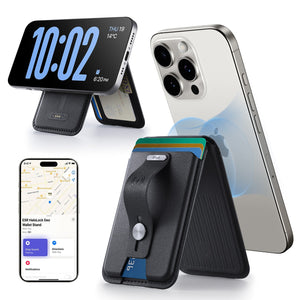
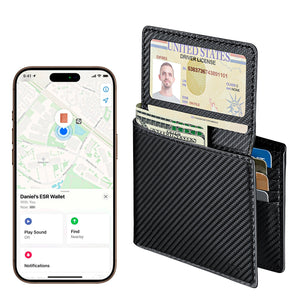
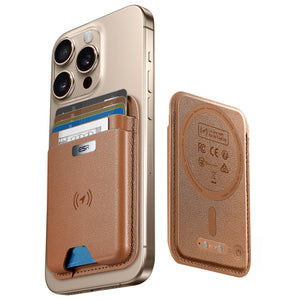
If you keep several cards with you daily, losing your wallet is just as stressful as losing your iPhone. ESR's Find-My Wallets combine MagSafe attachment, built-in Find My tracking, and spacious card storage in one slim design. You can track it instantly in the Find My app if it detaches or gets left behind, making it ideal for anyone who carries important cards.
Tip 3: Enable All Essential Safety Features in Settings
Ensuring your device is always traceable starts with enabling essential security options. Confirm that the following settings are active to prevent the loss:
● Find My iPhone
● Find My Network
● Send Last Location
● Stolen Device Protection in iOS 17.3+
These settings work together to improve tracking accuracy and secure your device during unexpected situations.
Tip 4: Practice Simple Daily Habits
To help keep track of your belongings and stay organized, it's important to develop some simple routines. Try designating a specific spot in your home to always keep your important items, like your phone, wallet, and keys. Before you head out anywhere, take a moment to check that you have these items with you. Additionally, remember to regularly save or back up important information from your devices. These easy habits can help you avoid losing things and make daily life more manageable.
Conclusion
In summary, Apple has helpful tools that can help you locate your iPhone and keep your important information safe. With easy-to-understand settings and quick options, you can recover your device more easily in stressful situations. By adopting a few simple habits, you can also lower the chances of misplacing your valuables. For extra security and reliable tracking of your cards, accessories like ESR's Find-My Wallet can provide peace of mind.
You may also like:
1、Game-Changing Leather MagSafe Wallets with Stands You’ll Wish You Found Sooner
2、ESR Geo Wallet with Find My Review: Never Worry About Losing Your Wallet Again!
3、5 Must-Have MagSafe Wallets for Your iPhone – Unwrap These Valentine’s Day Deals!


